
I have always been a fan of Code-First development style ever since it came out with entity framework 4.0. What some people don’t understand is that you don’t necessarily have to start with a bunch of C# classes and then generate the database, but you could use the code-first style using the DbContext class and expose any existing database through it. If the schema of a table changes, lets say you added column “foo nvarchar(500)” all you have to do is add a string property to the corresponding c# class and you are done, no need to mess around with any edmx files (which by the way, are freaking pain to merge sometimes).
With EF5 here are the steps for a simple code first development:
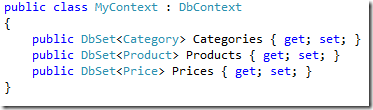
I have three classes that I want EF to generate database tables for. First create a class that extends DbContext and add three properties utilizing the DbSet class as below. Now you could create a constructor that takes in a connection string and pass that to the base or just go along with the convention over configuration technique that EF uses and simply name your connection string same as the class – in my case “MyContext”.

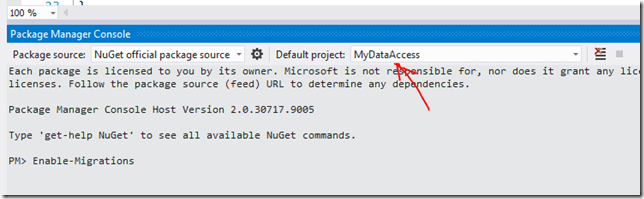
Next thing I have to do is enable migration for this project. Open up your package console and type in the following command. Ensure that you select the right project (the one that contains your entity classes along with the context class) and also make sure that you have an App.config in that project with the connection string shown above.
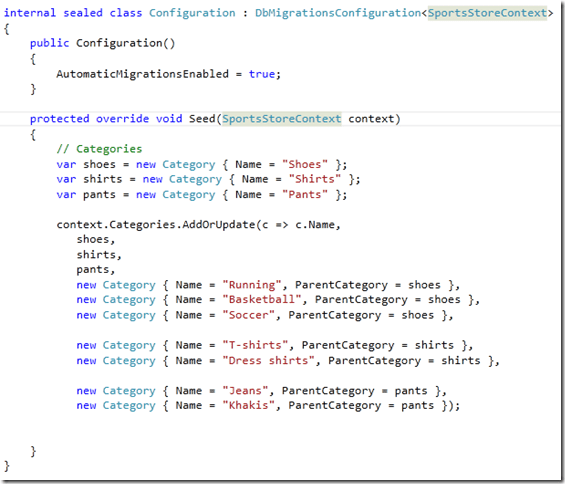
After this is done it should generate the following class in a folder called Migrations. This is where you could add seed data that will be inserted into the database when it gets created. I have also set AutomaticMigrationsEnabled to true which will ensure that my database is always in sync with my models when I run the update-database command. This setting should be set to off if you want more control over how migrations are done.
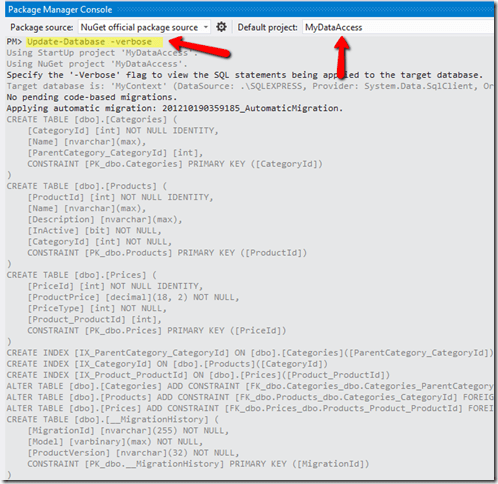
And finally we are ready to generate the database. Open up Package Manager console (ensure DataAccess project is set as the Startup project along with selecting it as the default project) and type in Update-Database and you are done. I always use –verbose flag so I can see the actual SQL that’s being used to create the tables.
References: EntityFramework Blog, Entity Framework 5 Performance considerations, Automatic Migrations Walkthrough, Migrations

 Tenzin kabsang
Leave a comment